
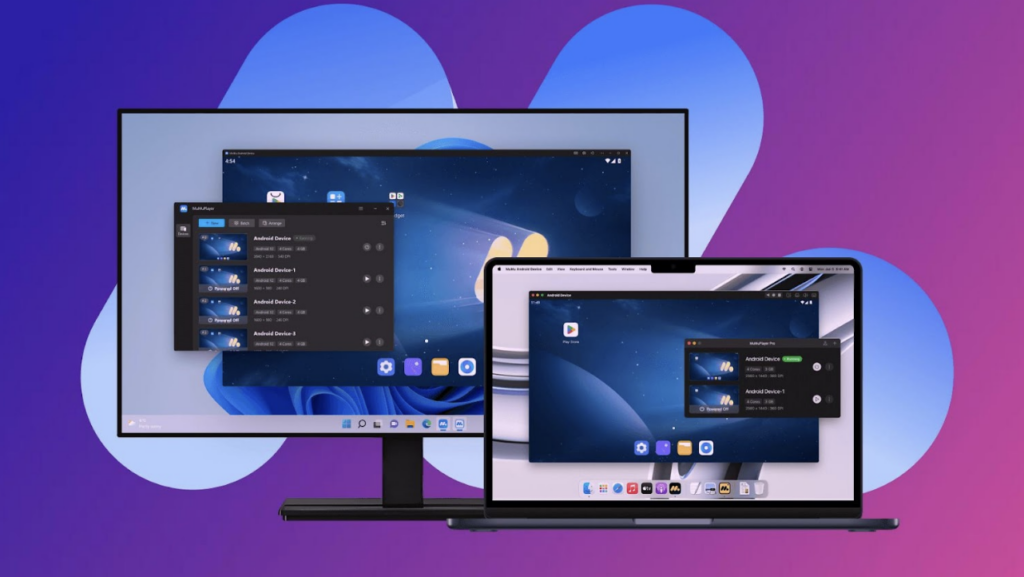
Mobile games have become one of the most active gaming environments in the world, but the technology behind them wasn’t really built with serious gaming in mind. Phone screens are small, and your touch controls sit right where you need to be looking, batteries die at the worst possible times, and the longer you play, the hotter everything gets. For a game that depends on accuracy and repetition, these are real problems. The good news is that playing Android games on PC fixes all of this at once, and it’s a lot easier to set up than most people think.
What You Actually Need
To play Android games on your PC, you’ll need an emulator, which is basically a piece of software that creates a virtual Android environment on your computer and lets you run your mobile games from there. The game runs on your machine, so you get the full power of your PC and all the screen space that comes with it, without any of the battery drain or overheating that comes with playing on a phone for hours. Emulators are usually free to download and work like any regular program, which means your existing collection of mobile games is accessible pretty much right away.
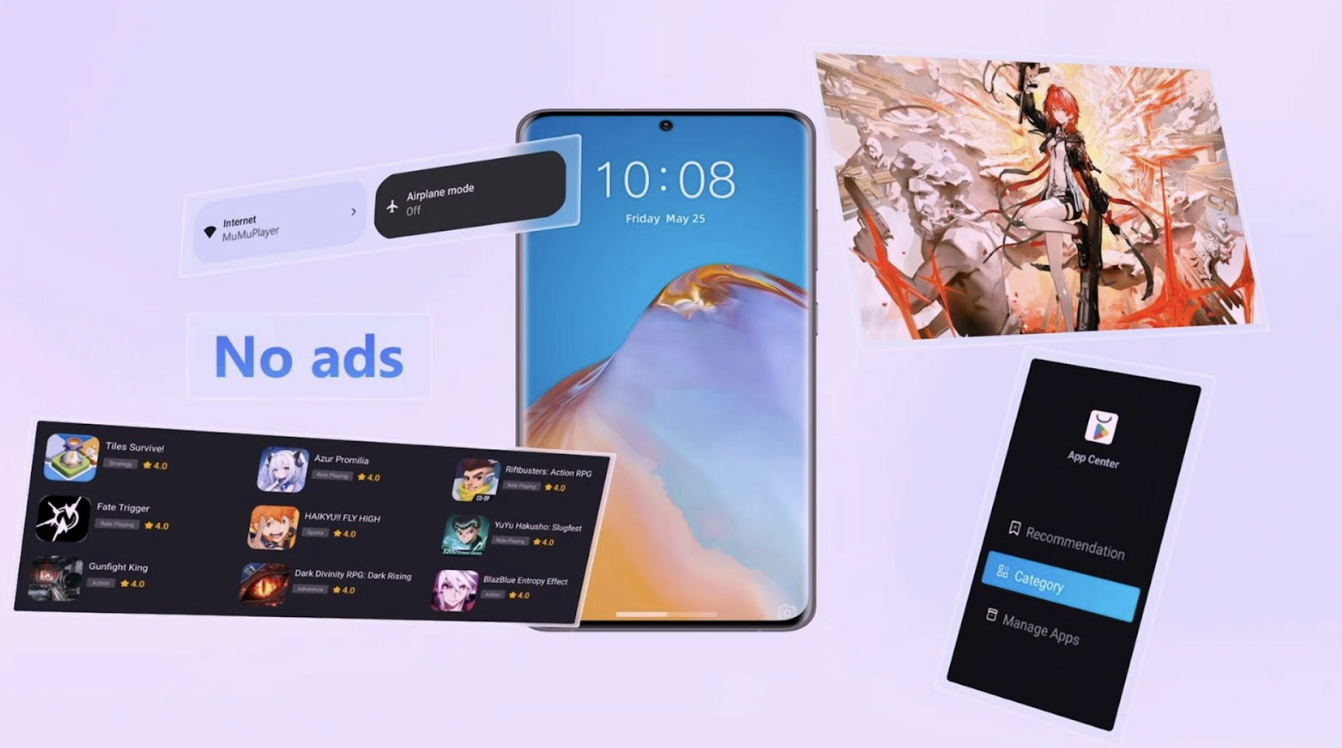
One popular option is MuMuPlayer, and it’s a solid pick for anyone who wants smooth, uninterrupted gameplay, especially in games that need good graphics to look their best. It’s also ad-free, which matters more than it sounds once you’ve had a cutscene interrupted a few times mid-playthrough.
Remapping Controls Is the Real Upgrade
The biggest step up going from phone to PC isn’t actually the screen size, it’s the controls. Touch inputs were designed for fingers on a small screen, so they’ll always feel like a compromise in a game that asks for more than that. On PC, you can remap the controls of any game to keyboard keys, mouse movement, or a controller, and adjust the sensitivities however you want. An action RPG gets skill keys on your keyboard. A shooter gets mouse aiming instead of thumb dragging across glass. A strategy game lets you click through menus at full speed. Emulators also let you save different control layouts for each game, so once you set it up, you never really have to think about it again.
Running Multiple Accounts
Something that doesn’t get talked about much but is genuinely useful is the ability to run multiple instances of the same game at the same time, each on a different account. For players who run more than one account, whether that’s for daily rewards, guild events, or just keeping tabs on an alt, there’s no need for a second device anymore. You can have everything running side by side without any real hit to performance.
Getting Started
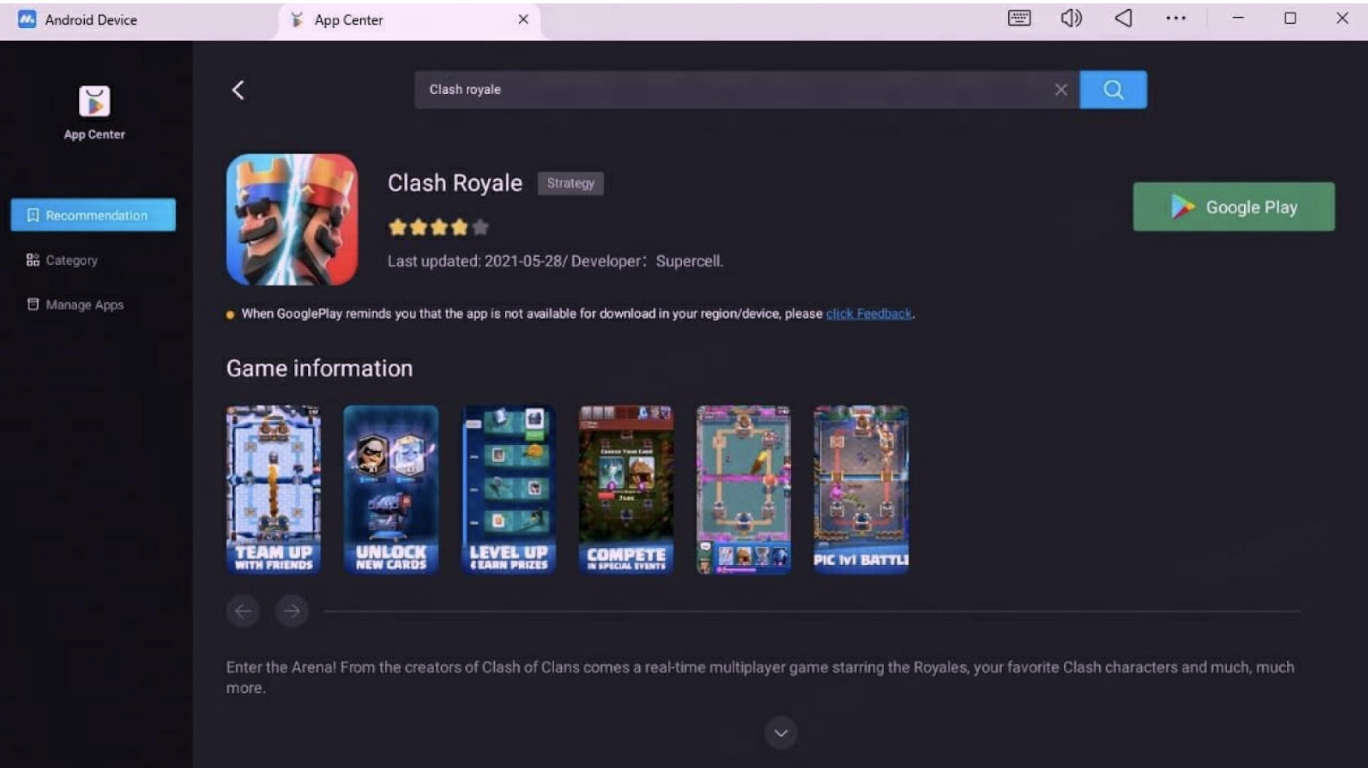
Setup is pretty straightforward. Download the MuMuPlayer Android Emulator, install it like any normal program, sign in to the app store with a Google account, and search for the game you want to play. Most popular mobile games are available and installed the same way they would on a phone.
And once you’ve done all that, it’s honestly hard to go back. There’s something about opening a game you’ve been playing on a small screen for months and seeing it fill out a full monitor with proper controls for the first time that makes it feel like a completely different game.